Categories
dell Firefox Geek Stuff Google Chrome Internet Browsers Linux Stuff Skype Software Ubuntu Virtual Machine VMware Player Windows 7 Windows XP Work

Ubuntu 10.10 on Work Notebook

Last year when a new IT Service company took over the contract from another IT Service company I was working for, they issued a new Dell Latitude E6400 notebook to each of us.  This PC is not the beefiest notebook from Dell, but this is not a review of the PC.   The notebook specs are:

  • Intel Core 2 Duo P8700 @ 2.53GHz
  • 2GB RAM (upgraded to 4GB by employer)
  • Intel Video
  • CDR / DVD ROM
  • 14″ Screen
  • SD Card Reader
  • Intel network

The PC came with Windows 7 x32, Symantec EndPoint 11, MS Office 2007, and a few other applications.  Being a good IT technician, I used Symantec Ghost to create a backup image the day it was delivered.  At first I left the PC as is and installed a bunch of software to support the client.  After a year of hard use, computer was having problems booting or just being stable.  In no way is this a bash of Windows 7.  I like Windows 7 but the system needed a rebuild and it was time to try something that’s been on my mind.

After sending an e-mail to my manager asking for access to the ftp server to download MS Office 2007 and Symantec EndPoint 11, I wiped out the HDD and installed Ubuntu 10.10 x64.  With a 64 bit OS, I can use the full 4GB of RAM.  Just like before, installation took about 20 minutes, and everything worked without having to install additional drivers.  Since the client I’m working for has started to roll out Windows 7 x64, I wanted the same for my VM.  Running Windows 7 x32 would be all that I need for the VM, but as I found out over the last 5 months, some applications that work in the 32bit environment will not work in a 64bit environment.  Sometimes you need the native 64bit software to install or work correctly.

So I chose VMware Player to run Windows 7 x64.  The VM is configured for 2.5 GB of RAM, 2 processors, with the NIC configured at bridged for DNS registration.  After activating Windows 7 x64, the system was ready for MS Office 2007 and Symantec EndPoint 11.  While waiting for may manager, I installed Banshee, Filezilla, Terminal Server Client, Google Chrome, Adobe Air, Tweetdeck, Adobe Acrobat Reader, Gimp, Skype, VLC, Ubuntu Tweak, Shutter, modified my Pictures Screensaver, plus a bunch of minor configurations I use for Ubuntu.  After several days of using Outlook Web Access (OWA), I finally received my email with the server information and software keys.

So now I am supporting my client with Ubuntu 10.10 x64 at work.  I can honestly say Ubuntu is ready for the IT professional in a real world environment.  I have three different Microsoft Windows vms for supporting two non-trusting domains, covering x32 and x64 operating systems.  Due to the limited resources on my notebook, I can only run one VM at a time, but that’s OK.  There is a second Linux computer constantly running a Windows XP x32 OS which I use to manage one of the domains.

The nice thing about my setup is the dual monitors.  The default screen is the notebook display, the second screen I use for my VMs or if I need to focus on a particular task.  I usually run Banshee and Empathy IM on the small LCD, Tweetdeck minimized, and Google Chrome for all my personal stuff.  Terminal Server Client is used to connect to the three Windows 2003 or 2008 severs I support orto VNC into a Windows XP workstation.  Plus the other techs at work were impressed with what I accomplished.

So give Ubuntu or any Linux distro a shot at work for a month.  If you plan it a little, you can have your system running Linux with a VM or two to meet your clients needs.


Categories
American Holidays Christmas Motorola Droid Sager Skype Ubuntu Video Windows 7

Merry Christmas 2010

Merry Christmas everyone!  And for those who do not celebrate Christmas, Season’s Greetings and Happy Holidays!

As I write this,I am watching my son play with his Stealth Flyer II Micro wireless helicopter and my daughter playing with the Leapster Explorer.  The kids had a great Christmas.  They got up about 6:30 AM, which is not too bad.  I remember getting up at 5:00 AM and trying to get my parents out of bed to open gifts Santa Claus brought.  One disappointment was the Leapster game we bought, no game cartridge was inside.  Not to happy with the LeapFrog company right now.  I wonder how my return experience at Best Buy will be?

I also have been using using Skype video to talk with my in-laws.  For some reason I had the wrong sound card set for Ubuntu which cause the internal mic not to work.  No problems, I rebooted into Windows 7 and ran Skype for our call.  After the call, I rebooted back into Ubuntu and researched the problem.  That’s when I found out I had the wrong profile.  I switched to Analog Stereo Duplex enabled me to select the internal mic.  I tested using the Droid with my account and Ubuntu with my wife’s account.  Audio and texting worked, now I’m ready for my next call.

Tonight we’ll have spiral cut ham, scalloped potatoes, and green beans for dinner.  Maybe we’ll drive around the neighborhood to see all the lights one the houses, watch some movies, and play some more games.  Either way I am enjoying my days off with the family.

UPDATE:

On December 26th I waited in line at Best Buy to return the LeapFrog game and explain the situation.  After listening to the manager tell me he will do me the favor since I bought the game at another Best Buy store, he exchanged it for me.  He made it seem like it was a huge inconvenience.  Now my daughter can enjoy the Leapster Explorer.

Categories
Sports Steelers Windows 7

Updated Steelers Desktop Theme for Windows 7

I’ve added 4 new pictures to the Steelers Theme I created for my Windows 7 PC.  You can find the theme Pittsburgh_Steelers_Win7_2010.zip, in my Box.net plugin on the sidebar of this blog.

Categories
Home PC Linux Stuff LinuxMint Sager Ubuntu Windows 7

Ubuntu 10.10 on my PC

On October 10th at 10:10:10 AM, I took a screenshot of the date/time of my PC running Ubuntu 10.04 using Shutter before installing Ubuntu 10.10.  I used Vuze to download the BT files for x32 and x64 versions within 15 minutes.  Since I’ve had problems in the past with running Update to install the new OS over the old, I chose to backup my home directory with the rsync command to my external USB HDD.  I’ve read, some people had problems installing Ubuntu 10.10 over 10.04.  So I was glad I backed up and installed from scratch.

My installation went smooth.  I liked the check box to install third party apps (multimedia codeces except for the DVD player).  Because of this one feature, I can no longer tell people to install Linux Mint to get all the multimedia stuff running right after install.  Please don’t misunderstand, I like Linux Mint a lot.  I installed Linux Mint 10 RC1 as a VM on my Ubuntu system.  But that’s a post for another time.

I like the purple color theme better than the orange/brown theme of the past, but I still customized my desktop.  Using Crebs (Create Background Slideshow) I created a nice 15+ Star Trek rotating wallpaper theme.  I also created a Halloween theme too.  Plus with Ubuntu Tweak I changed the GDM wallpaper to a nice artist rendition nebula and changed the Ubuntu logo to a Star Fleet one.  I didn’t bother to change the window colors, icons and sound effects yet, I’m still looking for something that will work well and easy to install or customize.  I also found one thing that has helped me out over the years for reinstalling Ubuntu and Windows, keep a text document of favorite apps and other commands that make installation easy.  For me this includes anything that I need to run at the CLI.  After all was said and done, I had everything installed, configured and data files restored within 4 hours.  No need to go back and install an application or look for a special command that enabled the Ubuntu Menu when pressing the Super key. Its all right there.  Plus I add to this text file if i make a change or find a new application that is a must have for me.

Is this a perfect 10 for Ubuntu 10.10?  No, but it feel like 9.95.  My only grip is the mouse pad stays enabled no matter if I use a USB wired or wireless mouse.  I search several posts about this issue.  And although some people had some terrific answers, none worked for me.  I can’t disable the touchpad in the BIOS either.  With Windows 7, the touchpad can be disabled using Logitech’s application.  Kind of wish Logitech would develop their software apps for Linux.  But I can’t fault Ubuntu for this.

If you haven’t tried Ubuntu 10.10, download a Live CD and try it on your PC.  I think you will be surprised with this OS.  Now if only Battlefield Heroes would work on Ubuntu.

Categories
FaceBook Geek Stuff Home PC LinuxMint Sager Thunderbird Ubuntu Windows 7 Windows Vista Windows XP Work

Busy IT Month

Well it’s been a busy month for me at home and work.  I migrated my Sager NP8690 to Ubuntu 10.04 and created three virtual machines; Windows XP, Windows Vista, and Windows 7.  To my surprise Windows Vista SP2 is extremely stable as a VM.  I disabled UAC because I don’t like being asked “are you sure you want to do this” from my PC.  Both Windows 7 and Windows XP SP3 ran well also.  Over all I was pleased with the performance from each VM.  Of course that changed when I tried to run two VMs at the same time,  I was running out of RAM.  I think if I had 8GB installed, running two VMs would have worked fine.

However, I was never able to get get Blu-Ray running in any VMs or in Ubuntu.  This bummed me out since I wanted I watch Star Trek.  Maybe I’ll ask Santa to bring a Blu-Ray player for Christmas.  Then I was informed by my wife that she needed Windows in order to work from home.  Plus she was not too thrilled that I didn’t create a account in Ubuntu for her.  Oops!

So I backed up everything (again) and reinstalled the image I took before wiping out my hard drive.  Since I am dual booting between Windows 7 and Ubuntu 10.04, I deiced to leave Windows with a larger partition and keep all my videos there.  I can access then easily enough from Ubuntu without much hassle.  I still need to install a few application in Ubuntu (Thunderbird, Filezilla) but for the most part I am finished.

Instead of trying to use Gwibber a buddy of mine said I should look into TweetDeck.  TweetDeck requires Adobe Air to install and run.  Being Adobe has issues with x64, there were no .deb files for my OS.  I downloaded the .bin file and from a Terminal window I typed ./AdobeAIRInstaller.bin.  Now I can install TweetDeck and have access to my LinkedIn, Twitter, Facebook, and Google Buzz accounts.

At work, I was asked to test a kickstart install script for RHEL 5.3 (Red Hat Enterprise Linux) client install on a test PC.  I used a Dell Precision 370 which has a Intel P4 3.4 GHz  single core, 2GB of RAM, 80GB Sata drive, Nvidia Quadro FX 1400 card, and a DVD drive.  Installation took about 30 minutes.  I test several applications, accessing network shares, and printing to several network printers.  I still prefer Ubuntu or Linux Mint over RHEL, but it was fun to be part of a Linux project.

I also help with installing a new Dell server this week.  The job required us to install a keyboard/mouse tray, move an existing server and tape library up, install a new IP console KVM, and install the new ESX server.  Due to space limitations, we placed a LCD monitor on the side of the rack.  Because I hurt my back several day earlier I was asked not to lift anything.  So for me it was more of a learning experience.  Hopefully I will be asked to assist with other data room projects.

Right now I’m downloading openSuse 11.3 x64 on DVD.  Maybe this weekend I’ll try it out on a VM to see some of the new improvements I’ve read about.

Categories
LinuxMint Open Office Sager Ubuntu Virtual Machine VirtualBox Windows 7 Windows Vista Windows XP

Issues with VirtualBox between Ubuntu and Windows 7

My Sager NP8690 is one awesome notebook (except for the battery life).   Right now I have it configured for dual boot between Ubuntu 10.04 and Windows 7.  The only time I really use Windows 7 is to watch Blu-Ray movies and the occasional office document that down for display correctly in Open-office.  But rebooting the PC to go back and forth between the two OS’s is an inconvenience.

To resolve this issue I installed Oracle Virtualbox 3.2.4.  Currently I have one VM with Linux Mint 9 x64 which works well.  So I attempted to install Windows 7 x32 just like I did at work on an old HP D530 tower.  When the install reaches the point of Installing Updates the OS fails stating it’s unable to find the hard drive.

I searched for an answer but nothing really fixed my problem.  Then I noticed the HDD controller for my Windows 7 VM was set for AHCI with a blank check box.  Selecting the check box allows the VM to access the HDD controller directly.  Installation of Windows 7 is complete.

Everything in Windows 7 seems stable and running well minus the Aero effects.  I checked for updates and out of 21, only 3 installed.  That’s no good, time to reboot the VM and tried again.  None of the available updates would install.  I found this solution for Windows Vista and it worked on Windows 7.

And since I am setting up VMs, I decided to install my copy on Windows XP and Microsoft Vista.  Why Vista?  Because I got it for free and gives me an opportunity to learn something new.  Plus I have friends and family that run Vista and they call for help on occasion.

Unfortunately I made a small error when I installed Ubuntu 10.04.  Since I chose to dual boot, I kept the Windows partition at 2/3 total drive space.  Since I created four VMs I am down to about 7GB free on my Home partition.  If I can get my Windows 7 VM to play Blu-Ray I will copy off all VMs, backup all data files from both OSs, and then rebuild with Ubuntu 10.04 and import all data.  Looks like I’m in for a long weekend.

UPDATE:

After spending 2 hours reading posts about playing Blu-Ray in a VM, it looks like this is not possible.  I plan on moving forward with the migration since I’m out of drive space.  I read a solution in Ubuntu Forums that might work.

Categories
Firefox Google Chrome Thunderbird Ubuntu Windows 7

Google Chrome 5 on my Ubuntu PC

A while ago I wrote about Google Chrome on my Windows 7 on my work and home PCs.  This week I installed Google Chrome 5 on all my PCs.  What made me install Chrome?  A full supported version for Linux.  Just download and install the .deb file.  The even have a x64 version too.

I decided to make Google Chrome my default browser on my Ubuntu 10.04 x64 notebook.  I had to modify Thunderbird 3.04 to run Google Chrome.  I will admit it’s fast.  Faster than Firefox on my computer.  Still there is the issue with unlimited cache files on my computer.  I guess i can remember to clean it out once in a while.   Maybe I can find a script to clean out the files every 30 days.

Categories
LinuxMint Ubuntu Windows 7 Work

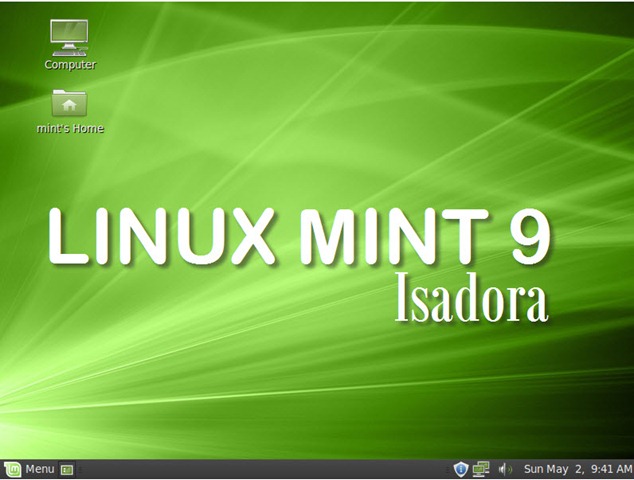
Installed Linux Mint 9

Last week I downloaded Linux Mint 9, both x32 and x64 bit platforms using Vuze.  There were 2 different ISO formats to choose from: CDs and DVDs.  The DVDs contain additional software and wallpaper.  Kind of a waste of a DVD, but I said OK, I want all the goodies on one disc.

At work I have 2 Linux PCs, one has Ubuntu 10.04 x32 and another running Mint 8 x32.  My Mint 8 PC hosts a Windows 7 VM using VirtualBoxOSE.  I use this VM to connect to a Windows Domain to manage machine accounts.  I also user Terminal Server Client to log onto another Microsoft server for running Symantec Ghost Solution Suite.

I closed my Windows 7 VM and other active connections and proceeded to backup my data and VM to my Ubuntu PC.  The VM was about 13GB with other data files totaling about an additional 4GB.  Installed the DVD, rebooted to install Linux Mint 9.

I admit I like the slideshow better in Ubuntu 10.04 than Mint 9, but it was still informative.  Installation time was under 20 minutes on my PC.  After a quick reboot I logged onto my new Mint 9 PC.  What do I love about Mint?

  • Multimedia works right from the start.  I was able to play YouTube and QuickTime videos.
  • Color scheme and Title bar Button Layout.  I like the new color scheme Canonical went with on Ubuntu 10.04, but I like the color scheme with Mint too.  Under Control Center – Look and Feel – Desktop Settings, I can change where the Title bar buttons go.  I moved them to the left for something different.
  • I can configure the menu slab to always display my Favorites instead of what was shown last, rename the menu button to anything (I went with my PC name), show side pane or recent documents, change the column size for favorites, and install a scrollbar Places and System.

I enabled Desktop Effects and Compiz to get some of the eye candy running.  Afterwards it was a quick data transfer of my personal data back into my home folder.  I installed the following apps:

      After getting my Windows 7 VM copied back to my PC, I configure the Startup Applications to launch my Windows 7 VM when I sign onto the system using the following command:

VBoxManage startvm PCVM01WIN7

    .   For some reason I cannot connect to the VM using the PC name but I can connect by IP address.  I guess this give me something else to work on.

Bootchart records it take 14.91 seconds for the PC to boot.  Nice!

I am contemplating if I should replace my Ubuntu 10.04 x64 on my Sager notebook with Mint 9 x64.  I still have some issues with fast user switching on my Ubuntu 10.04 PCs (which I disabled using Ubuntu Tweaks), and the occasional lack of response from the OS when nothing works and I have to open Gnome-Terminal and reboot.  I think this might be an issue with NVIDIA drivers. I’m not sure if I’ll have the same issues with Mint 9.  And then there is the issue of creating a backup of the PC before I wipe off Ubuntu in favor of Mint 9.  Should I use Symantec Ghost or create the PING CD and create a backup ISO file.

Either way you should give Linux Mint 9.  Download the ISO and try the LiveCD or LiveDVD.  Always be sure to backup and verify your data is safe BEFORE wiping the HDD.

Kristen's Healthy Living Blog

Exploring ways to live a healthier life

Brave & Reckless

Reclaiming my inner badass at 50

Discover WordPress

A daily selection of the best content published on WordPress, collected for you by humans who love to read.

Drone Builders Blog

Informational Blog for Drone & Quadcopter Builders and Hobby enthusiast.