Categories
Home PC Ubuntu

Upgrading to Ubuntu 9.10

Well it turned out I had some free time on October 31st. I decided to use Update Manger (as I’ve done in the past) to migrate from 9.04 to 9.10.  Well that was a mistake.  First off, it took forever since everyone was upgrading at the same time.  I was not too happy about that, but it was my fault.

After the wonderful process was complete, I noticed several things that didn’t work:

  • Sound card was non-existent (never had that problem with any Linux distro)
  • Ubuntu would not start in the new Linux 2.6.31 kernel
  • Boot time was almost 90 seconds (I thought it was suppose to be faster)

Needless to say I was disappointed.  Although I had a backup image of my home partition, I figured it was time to back it up into a new folder and wipe the / partition and rebuild from scratch.  So November 1st at 12:00PM after the backup completed, I booted off the Ubuntu CD I downloaded using Vuze.  Within about 30 minutes or so, I wasn’t watching the clock too closely, I was able to get a fresh install of Ubuntu 9.10 up and running.

Much better!!  Everything worked as it should this time.  And the nice thing, I alny had to install a few things to get all the multimedia up and running.  I can play MP3s, my videos I saved from YouTube, watching the Mac commericals on the Apple web site, and watched movie trailers on Quicktime’s web site (2 good ways to verify Quicktime is working.)

I used the Application Software Center to install Filezilla, Thunderbird, and a few other applications.  All my e-mail was present and connected to my 2 accounts with almost no problems.  I had to remove Lightning and Gmail Calendar and then install them from the Application Center.  Now I have access to my Google Calendar.

Last night I installed Picasa some Microsoft Core fonts, Stellarium, and dvdrip.  I didn’t have time to try them out, but I’m sure they’ll work just fine. I also installed bootchart, and my boot time is longer than the previous OS version.  The PC now takes 64 seconds to boot, what happened to boot times becoming faster?

Do I plan on updating my Ubuntu 9.04 PC at work?  No.  I heard but still need to confirm, there are issues with Samba server with Windows 7 clients.  I have 2 Windows 7 clients that connect to my Ubuntu PC’s share for PST and document storage.  Plus, since the Update Manager process was a bad experience, I would prefer to rebuild from scratch.  But then that means I have to redo the Samba server, ensure I get everything setup correctly, install ssh server, install NX again, and all the other stuff I customised.  I think I will wait for the next LTS.

UPDATE:

Here is the latest bootchart from my PC.  69 seconds.
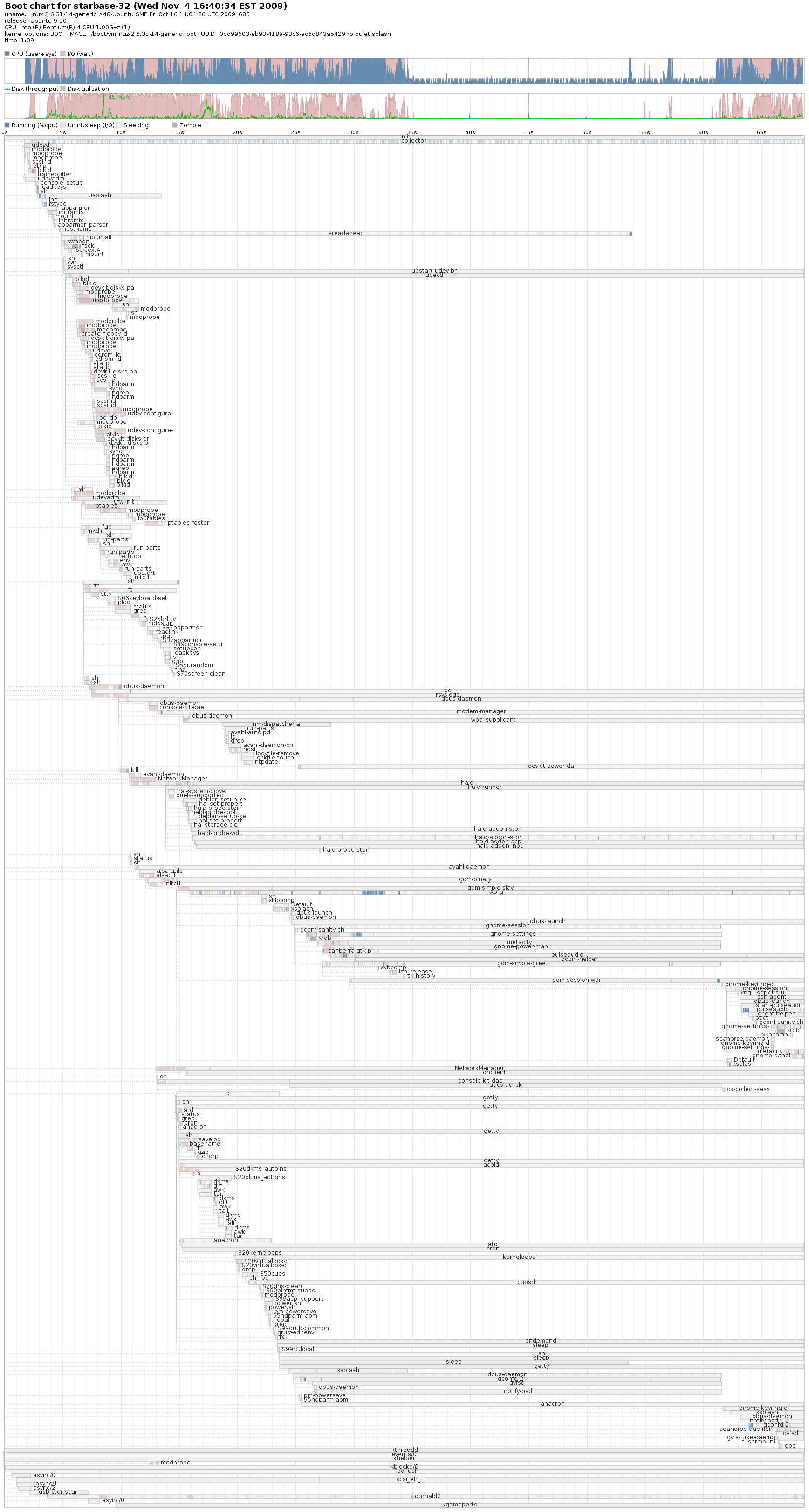
starbase-32-karmic-20091104-1

Categories
Home PC Software Ubuntu

BT Ubuntu 9.10 Desktop – Server

Today I tried to download the iso files for Ubuntu 9.10.  Needless to say it was taking hours.  At one point my computer said it would take 2 days to complete!  OK, time to switch to a Bit Torrent. (I am running Vuze on my home PC.)  I found the BT files for Ubtunu 9.10 Desktop and Server.  I had both iso files under 10 minutes. 

Some people might quit their session once the files are downloaded.  Not me, I’m keeping the feed going until I get home from work.  Tonight I will stop at the store, pickup a stack of CDRs and burn the iso files.  Since I have a lot on my plate this week, I might not get to try them out until Sunday November 1st.


Categories
Ubuntu

Happy Belated Birthday Ubuntu

Oops! Looks like I forgot to wish someone Happy Birthday.  Well, that’s why they make Belated Birthday Cards.

Categories
LinuxMint Ubuntu

Booting into Linux from USB Flash Drive

About 10 days ago I purchased a 16GB USB Flash Memory “jump drive” from New Egg.  I bought the Corsair Flash Voyager with the rubber case.  It is not the fastest drive out there – it is the fastest drive I’ve owned.  Having 16GB of drive space is now allowing me to have some fun with people by showing them Linux booting and running from a USB memory stick.

The first distro I installed was Ubuntu 9.04.  I used the USB Startup Disk Creator located under System -> Administration from the Menu Bar.  You will need the Ubuntu 9.04 CD or the .iso file to load the system on the USB memory stick.  Using the slider button I set the maximum storage space to save all my files. This will allow me to save documents, music, e-mail, web bookmarks, just about anything I want up to about 14GB.  I can’t tell you how long it took becasue I had to step away for awhile to assist a client with a PC issue.

After installation was complete, I booted the USB drive off a test HP computer.  Everything worked!  Ubuntu detected all hardware on this PC, allowed me to connect to the Internet, use Terminal Server to connect to Windows 2008 servers, connect to my printers (HP LaserJet 4200 and HP OfficeJet Pro K550), and connect to the shares on my Linux and Windows PCs.

I changed the GDM Login to skip the autologin of LiveUser and created a new user account called george.  I rebooted the PC and was able to logon as George to the Ubuntu instance as George.  Using this account I connected to my printers, and changed the wallpaper to a Star Trek theme.  Later that night I used the USB stick with my notebook to set up access to my home wireless network (worked with no problems connecting to my WPA2 network), G-mail on Thunderbird, and my HP Color LaserJet 2605 network printer.  For the rest of the weekend, that was the PC I used.

Now I happen to have an iso of Linux Mint 7 and I wanted to try it out on the USB drive.  I found a post on PenDriveLinux.com on how to install Linux Mint 7 onto a USB memory stick from within Windows.  Instead of the 1GB persistence file, I chose the 4GB file.  I partitioned the USB drive; 7GB for Mint 7, and 8GB for storage of downloads and other miscellaneous files.  The 8GB partition is formatted to FAT32 so I can use it when I need to connect to Windows.

The green and dark grey / black colors look very nice.  As stated above, I modified GDM to stop the auto login of the use mint, and created a user called george. I also like the Mint menu instead of the standard Gnome Menu Bar.  If you prefer the Gnome Menu Bar, you can add it by right clicking the Panel bar and select Add to Panel.

I was able to enable the Compiz and customise it to my liking.  I picked the option to have the spinning cube when I switch desktops, and picked Beam Up when I close the windows (looks cools with the Star Trek wallpaper.)  I also installed Thunderbird 3 beta 4 and configured it with my G-mail account.

Most of the PCs I tested Mint 7 on worked well.  I always found the ether-net cards and connect to the Internet. I like the fact every website I went to had working multi-media except for audio correctly.  The sound is very faint.

Some things I find annoying:

  • I can’t change the host name permanently (I renamed the PC rio-grande  rebooted and the name stays mint.)
  • Fortunes is always running every time I open Terminal.  Some fortunes are funny, but now it is annoying.

I would like to try this bootable USB on some other PCs like Dell, Gateway, or a Macbook Pro.  I would also like to figure out how to get Symantec ghost32.exe to work with Wine.  The program works but doesn’t see the local hard drive.  If I can make that work at the client site then I can move BartPE to a secondary tool.

I should also mention that I chose not to save any passwords incase I lose my USB stick.  I configured Thunderbird not to save messages on the system, but I don’t think it is working correctly.  I might look into enabling encryption on the home folder or see if I can

Although I have no plans on making this a permanent distro to use at work, I will give it great consideration when I rebuild my Dell Dimension 8200 after I purchase my new notebook.

Categories
Fedora Core Ubuntu Windows XP Work

Rebuild Linux PCs at Work

Today is the Friday before Labor Day in the United States.  Many of the employees of the client I support are off today.  So I am taking this opportunity to rebuild my Fedora Core 11 PC (completed) and my Ubuntu 9.04 PC.  I am also building a new Windows XP PC for R&D.

So far everything is going well.

Of course I backed up my Ubuntu PC using rsync to an external HDD.  Since I decided to rework my partitions I also backed up the /home directory too.  Everything is being built from scratch.  Hopefully I can have everything finished by end of business today.

Categories
Linux Stuff Ubuntu Video

Downloading Who’s Line is it Videos from YouTube

One of my favorite TV shows was “Who’s Line is it Anyway” from ABC.  I was bummed the show was cancelled several years ago, and never thought too much of it since then.  About two weeks ago I was on YouTube and found clips from Who’s Line.  After watching a few of them, I decided to download the video to my Linux PC and move the video into the path /home/george/Video/YouTube/Whos Line.  However, the YouTube down is not installed with Ubuntu.  You need to install the file from the universe repository using the following steps:

  • Open a Terminal Window
  • enter without quotes “sudo apt-get install youtube-dl”
  • enter your password

Leaving the Terminal Window open, you can down run the command youtube-dl <url address of the video>.  In a few minutes the file will download to your /home directory as a .flv file.  Now I hate the fact when the file downloads the title of the file make no sense to me what so ever.  If you change the command to youtube-dl -l <url address>, the title of the video will be inserted into the file name.  To see the list of other parameters for downloading videos type youtube-dl -h.

Categories
Linux Stuff Ubuntu

Installed KeyTouch and KeyTouch Editor

I have an old Dell Dimension 8200 which has a Dell SK 8100 with extra function buttons: E-mail, Internet Home, Search, and Sleep.  I never could never get any of these keys to work in Linux… that is until today.

I was in Synaptic Package Manager and typed in keyboard into the Search field.  In that list I saw keytouch-editor.  I remember reading about that before, but never got around to trying it out.  I selected KeyTouch Editor and installed it. KeyTouch can be found in the Control Center or under System > Preferences menu.

I was prompted by KeyTouch Editor to press any of the “extra function keys” which will bring you to a blank interface.  All you need to do is enter in the manufacture name and model number of the keyboard.  Click the New button in the bottom left, press an extra function key, and either give it a name or choose the name it KeyTouch displays.

I configured all four buttons and three of them work great.  The sleep button will not work.  For some reason it does not like the Lock Command from the Special Action Plugin menu. I’m think if I knew the line command to initate a sleep or hibernate power save, I can enter it on the program line.

Once your buttons are programmed, click on File and Save As and save the file anywhere you choose (mine is in the root of my profile.)  You will be prompted to send your file to the developer if you wish.  Although I did it really doesn’t matter.  Exit KeyTouch Editor.

But that is only the first step; you need to install KeyTouch to import your keyboard file into your system.  I opened Gnome Terminal and entered sudo apt-get install keytouch.  Now you can go back to Control Center or System > Preferences and run KeyTouch.  The Key Setting tab should be blank (mine are populated due to my settings are already entered.)  Select the Keyboard tab and click on the Change button.  A new window will open with a list of available keyboards to choose.  Click on the Import button and find your new keyboard file.  Your keyboard should be available in the list, select it and click the OK button.

Now your keyboard is displayed click on the Key Settings tab.  Select each key listed on the left side of the window and verify what action will take place.  Once complete, click the Apply and OK buttons to close out of KeyTouch.  Now you can try out your buttons.  If you programmed them correctly, your assigned programs will open.  If not, just go back and modify them.

Another nice thing about this setup, it works on all of my local accounts.

Of course additional information can be found at the KeyTouch Web Site.

UPDATE: 06/26/2009

I figured out why the sleep / hibernate button was not working.  In the Power Management section under ScreenSaver, I had the button set to “Do Nothing.”  So of course I enabled the only other option – hibernate.  It will hibernate when I press the button, but it has problems when trying to come back.  So I set the sleep / hibernate button back to “Do Nothing.”

Categories
Ubuntu Windows 7 Work

Trying Out Windows 7 RC at Work

Well a co-worker of mine gave me the latest RC of Windows 7 to reinstall the previous version of Windows 7 on a HP PC that kept suffering from the standard BSOD.  The reason I asked for it, the PC came up on a report that it was not on, receiving any updates, and it was not reporting to the Symantec Anti-virus server.

So after installation I changed the theme from Sky Blue to Slate and changed the background from the Beta fish to something I did not expect to find, PENGUINS!  I was shocked to see penguins, and I also saw a koala bear in there too.  Does Windows 7 have a secret envy of being Linux or Ubuntu 10.04?  Here are the screen-shots from my PC.

Kristen's Healthy Living Blog

Exploring ways to live a healthier life

Brave & Reckless

Reclaiming my inner badass at 50

Discover WordPress

A daily selection of the best content published on WordPress, collected for you by humans who love to read.

Drone Builders Blog

Informational Blog for Drone & Quadcopter Builders and Hobby enthusiast.