

Categories
FaceBook Geek Stuff Home PC LinuxMint Sager Thunderbird Ubuntu Windows 7 Windows Vista Windows XP Work

Busy IT Month

Well it’s been a busy month for me at home and work.  I migrated my Sager NP8690 to Ubuntu 10.04 and created three virtual machines; Windows XP, Windows Vista, and Windows 7.  To my surprise Windows Vista SP2 is extremely stable as a VM.  I disabled UAC because I don’t like being asked “are you sure you want to do this” from my PC.  Both Windows 7 and Windows XP SP3 ran well also.  Over all I was pleased with the performance from each VM.  Of course that changed when I tried to run two VMs at the same time,  I was running out of RAM.  I think if I had 8GB installed, running two VMs would have worked fine.

However, I was never able to get get Blu-Ray running in any VMs or in Ubuntu.  This bummed me out since I wanted I watch Star Trek.  Maybe I’ll ask Santa to bring a Blu-Ray player for Christmas.  Then I was informed by my wife that she needed Windows in order to work from home.  Plus she was not too thrilled that I didn’t create a account in Ubuntu for her.  Oops!

So I backed up everything (again) and reinstalled the image I took before wiping out my hard drive.  Since I am dual booting between Windows 7 and Ubuntu 10.04, I deiced to leave Windows with a larger partition and keep all my videos there.  I can access then easily enough from Ubuntu without much hassle.  I still need to install a few application in Ubuntu (Thunderbird, Filezilla) but for the most part I am finished.

Instead of trying to use Gwibber a buddy of mine said I should look into TweetDeck.  TweetDeck requires Adobe Air to install and run.  Being Adobe has issues with x64, there were no .deb files for my OS.  I downloaded the .bin file and from a Terminal window I typed ./AdobeAIRInstaller.bin.  Now I can install TweetDeck and have access to my LinkedIn, Twitter, Facebook, and Google Buzz accounts.

At work, I was asked to test a kickstart install script for RHEL 5.3 (Red Hat Enterprise Linux) client install on a test PC.  I used a Dell Precision 370 which has a Intel P4 3.4 GHz  single core, 2GB of RAM, 80GB Sata drive, Nvidia Quadro FX 1400 card, and a DVD drive.  Installation took about 30 minutes.  I test several applications, accessing network shares, and printing to several network printers.  I still prefer Ubuntu or Linux Mint over RHEL, but it was fun to be part of a Linux project.

I also help with installing a new Dell server this week.  The job required us to install a keyboard/mouse tray, move an existing server and tape library up, install a new IP console KVM, and install the new ESX server.  Due to space limitations, we placed a LCD monitor on the side of the rack.  Because I hurt my back several day earlier I was asked not to lift anything.  So for me it was more of a learning experience.  Hopefully I will be asked to assist with other data room projects.

Right now I’m downloading openSuse 11.3 x64 on DVD.  Maybe this weekend I’ll try it out on a VM to see some of the new improvements I’ve read about.
Categories
LinuxMint Open Office Sager Ubuntu Virtual Machine VirtualBox Windows 7 Windows Vista Windows XP

Issues with VirtualBox between Ubuntu and Windows 7

My Sager NP8690 is one awesome notebook (except for the battery life).   Right now I have it configured for dual boot between Ubuntu 10.04 and Windows 7.  The only time I really use Windows 7 is to watch Blu-Ray movies and the occasional office document that down for display correctly in Open-office.  But rebooting the PC to go back and forth between the two OS’s is an inconvenience.

To resolve this issue I installed Oracle Virtualbox 3.2.4.  Currently I have one VM with Linux Mint 9 x64 which works well.  So I attempted to install Windows 7 x32 just like I did at work on an old HP D530 tower.  When the install reaches the point of Installing Updates the OS fails stating it’s unable to find the hard drive.

I searched for an answer but nothing really fixed my problem.  Then I noticed the HDD controller for my Windows 7 VM was set for AHCI with a blank check box.  Selecting the check box allows the VM to access the HDD controller directly.  Installation of Windows 7 is complete.

Everything in Windows 7 seems stable and running well minus the Aero effects.  I checked for updates and out of 21, only 3 installed.  That’s no good, time to reboot the VM and tried again.  None of the available updates would install.  I found this solution for Windows Vista and it worked on Windows 7.

And since I am setting up VMs, I decided to install my copy on Windows XP and Microsoft Vista.  Why Vista?  Because I got it for free and gives me an opportunity to learn something new.  Plus I have friends and family that run Vista and they call for help on occasion.

Unfortunately I made a small error when I installed Ubuntu 10.04.  Since I chose to dual boot, I kept the Windows partition at 2/3 total drive space.  Since I created four VMs I am down to about 7GB free on my Home partition.  If I can get my Windows 7 VM to play Blu-Ray I will copy off all VMs, backup all data files from both OSs, and then rebuild with Ubuntu 10.04 and import all data.  Looks like I’m in for a long weekend.

UPDATE:

After spending 2 hours reading posts about playing Blu-Ray in a VM, it looks like this is not possible.  I plan on moving forward with the migration since I’m out of drive space.  I read a solution in Ubuntu Forums that might work.

Categories
LinuxMint Ubuntu Windows 7 Work

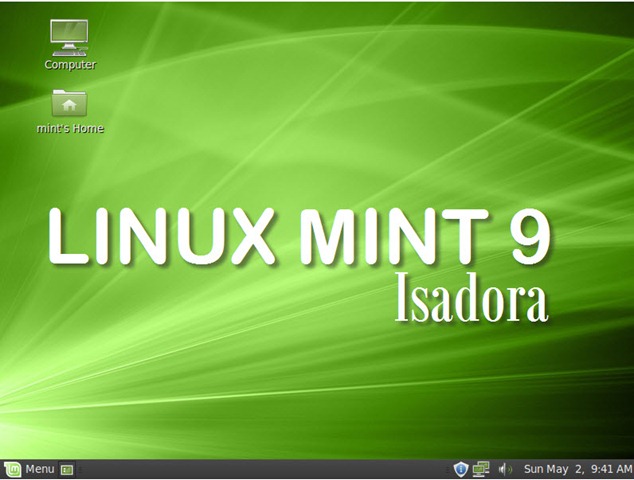
Installed Linux Mint 9

Last week I downloaded Linux Mint 9, both x32 and x64 bit platforms using Vuze.  There were 2 different ISO formats to choose from: CDs and DVDs.  The DVDs contain additional software and wallpaper.  Kind of a waste of a DVD, but I said OK, I want all the goodies on one disc.

At work I have 2 Linux PCs, one has Ubuntu 10.04 x32 and another running Mint 8 x32.  My Mint 8 PC hosts a Windows 7 VM using VirtualBoxOSE.  I use this VM to connect to a Windows Domain to manage machine accounts.  I also user Terminal Server Client to log onto another Microsoft server for running Symantec Ghost Solution Suite.

I closed my Windows 7 VM and other active connections and proceeded to backup my data and VM to my Ubuntu PC.  The VM was about 13GB with other data files totaling about an additional 4GB.  Installed the DVD, rebooted to install Linux Mint 9.

I admit I like the slideshow better in Ubuntu 10.04 than Mint 9, but it was still informative.  Installation time was under 20 minutes on my PC.  After a quick reboot I logged onto my new Mint 9 PC.  What do I love about Mint?

  • Multimedia works right from the start.  I was able to play YouTube and QuickTime videos.
  • Color scheme and Title bar Button Layout.  I like the new color scheme Canonical went with on Ubuntu 10.04, but I like the color scheme with Mint too.  Under Control Center – Look and Feel – Desktop Settings, I can change where the Title bar buttons go.  I moved them to the left for something different.
  • I can configure the menu slab to always display my Favorites instead of what was shown last, rename the menu button to anything (I went with my PC name), show side pane or recent documents, change the column size for favorites, and install a scrollbar Places and System.

I enabled Desktop Effects and Compiz to get some of the eye candy running.  Afterwards it was a quick data transfer of my personal data back into my home folder.  I installed the following apps:

      After getting my Windows 7 VM copied back to my PC, I configure the Startup Applications to launch my Windows 7 VM when I sign onto the system using the following command:

VBoxManage startvm PCVM01WIN7

    .   For some reason I cannot connect to the VM using the PC name but I can connect by IP address.  I guess this give me something else to work on.

Bootchart records it take 14.91 seconds for the PC to boot.  Nice!

I am contemplating if I should replace my Ubuntu 10.04 x64 on my Sager notebook with Mint 9 x64.  I still have some issues with fast user switching on my Ubuntu 10.04 PCs (which I disabled using Ubuntu Tweaks), and the occasional lack of response from the OS when nothing works and I have to open Gnome-Terminal and reboot.  I think this might be an issue with NVIDIA drivers. I’m not sure if I’ll have the same issues with Mint 9.  And then there is the issue of creating a backup of the PC before I wipe off Ubuntu in favor of Mint 9.  Should I use Symantec Ghost or create the PING CD and create a backup ISO file.

Either way you should give Linux Mint 9.  Download the ISO and try the LiveCD or LiveDVD.  Always be sure to backup and verify your data is safe BEFORE wiping the HDD.

Categories
Home PC LinuxMint Sager Windows 7

Installed Linux Mint 8 64bit

Back on February 1st 2010, I said I was going to wait on installing Linux again on my new Sager NP8690.  Well that didn’t last too long.  Over the past weekend I ran Symantec Ghost to backup my hard drive, downloaded and installed openSuSE 11.2 64bit.  Installation went well, I installed KDE and Gnome desktop environments.  However openSuSE 11.2 ran a little sluggish.  Although openSuSE was my first Linux distro, I can’t see myself running a distro that doesn’t thrill me.  I have a lot of respect for the openSuSE developers and I think they have a fine product.  I reinstalled the backup image and move to Linux Mint 8.

With Linux Mint 8 64bit, the installation was easy as always.  What I really like the most was having everything work as soon as installation was complete.  Of course I had to install the Nvidia drivers to enable Desktop Effects.  After rebooting the PC, I was able to log onto Facebook and run Farmville, Fishville, and Happy Aquarium.  I also watched the Avatar movie preview at Apple.com/trailers, and watch the Mac Ads.  I also watched a few video clips on Youtube, clips from my Video folder, and listen to MP3s.

Although I can connect to my television set using HDMI, I am unable to get the resolution correct.  Also I cannot play Blu-Ray movies (Star Trek) in Linux Mint.  I did read there are some hack I can run, but to be honest I would rather have a player already installed or a codex available for VLC.  I wouldn’t mind paying for a native application from Corel who sell WinDVD, an application that work well from my perspective.

I plan on running Windows 7 Ultimate and Linux Mint 8 in parallel for many of my applications.   Although I use IMAP for my Google account, I’m not sure I want to check e-mail on both OSs. I still may set it up, but I need to decide which OS for my primary e-mail.

Categories
E-mail Evolution LinuxMint Thunderbird Ubuntu

Thunderbird 3

Like many out there, I migrated from Thunderbird 2.23 or whatever version came with Ubuntu 9.10 to Thunderbird 3 the day it was released.  The upgrade went painlessly for the most part.  I also installed Thunderbird on my Linux Mint 8 USB jump drive.  I really enjoy this new version, and must say it’s about time for an update.

Since the initial migration from Evolution to Thunderbird, I’ve never considered moving back.  Thunderbird 3 is solid, reliable, multi-platform (Mac, Linux, and Windows), easy to use, and has a clean interface.  I’ve installed the following add-ons: Quicktext 0.9.10, Silvermel 1.3 (theme), Lightning 1.0 pre, and Provider for Google 0.6 pre (both had to be download from Mozilla FTP site).  Everything installed with no problems, and since I already had Quicktext installed before, all my signatures imported easily.

I think my only gripe, like almost everyone, Lightning should be included by default with Thunderbird. Why have an e-mail client without a calendar plugin?

Categories
LinuxMint

Booting Linux Mint 8 from USB Flash Drive

A few days ago I downloaded the new ISO of Linux Mint 8.  I wanted to update my USB flash drive from Mint 7, but figured I should rebuild the whole OS from scratch due to some problems I had with upgrading Ubuntu 9.04 to 9.10.

The process was simple.  First I made a backup of my data and second partition to my Ubuntu 9.04 PC at work.  I downloaded from pendrivelinux.com a copy of USB-Installer-For-Mint8.exe and saved it to a folder called Mint 8 on my Windows 7 Enterprise Desktop and copied over the Mint8 ISO file too.

To have the 4GB persistent file I formatted the USB drive at FAT32.  I ran USB-Installer-For-Mint8.exe and followed the directions making sure I chose the correct drive to install Mint 8.  A few minutes later I was done.

I booted from the USB drive and in no time was running Linux Mint 8.  I changed the wallpaper to the black pinstripe, enabled Desktop effects, and installed my HP Color LaserJet 2605dn laser printer.  Connecting to wireless was a snap.  I also like the fact all the codecs we installed by default.  Watching the Mac ads at Apple.com, checking in with Facebook, and watching videos on Youtube.com worked like it should. In my opinion, this is the way Linux should be presented to the public.  Everything works, no need to install a bunch of drivers or codecs just to get basic functionality.

One thing that is confusing, the OS boots with the LiveUser account ALL THE TIME! I’ve tried to disable it, but on every reboot the PC will logon with the account mint.  Even if I had to keep the account on the PC, I want to be able to pick who I am going to logon as.  I was able to configure GDM to display the logon screen so I can choose which account to use.

If you haven’t had a chance to try out Mint 8, start Virtualbox-OSE or follow the directions provided by linuxpendrive.com to have a bootable USB flash drive and give it a run.

Categories
LinuxMint Ubuntu

Booting into Linux from USB Flash Drive

About 10 days ago I purchased a 16GB USB Flash Memory “jump drive” from New Egg.  I bought the Corsair Flash Voyager with the rubber case.  It is not the fastest drive out there – it is the fastest drive I’ve owned.  Having 16GB of drive space is now allowing me to have some fun with people by showing them Linux booting and running from a USB memory stick.

The first distro I installed was Ubuntu 9.04.  I used the USB Startup Disk Creator located under System -> Administration from the Menu Bar.  You will need the Ubuntu 9.04 CD or the .iso file to load the system on the USB memory stick.  Using the slider button I set the maximum storage space to save all my files. This will allow me to save documents, music, e-mail, web bookmarks, just about anything I want up to about 14GB.  I can’t tell you how long it took becasue I had to step away for awhile to assist a client with a PC issue.

After installation was complete, I booted the USB drive off a test HP computer.  Everything worked!  Ubuntu detected all hardware on this PC, allowed me to connect to the Internet, use Terminal Server to connect to Windows 2008 servers, connect to my printers (HP LaserJet 4200 and HP OfficeJet Pro K550), and connect to the shares on my Linux and Windows PCs.

I changed the GDM Login to skip the autologin of LiveUser and created a new user account called george.  I rebooted the PC and was able to logon as George to the Ubuntu instance as George.  Using this account I connected to my printers, and changed the wallpaper to a Star Trek theme.  Later that night I used the USB stick with my notebook to set up access to my home wireless network (worked with no problems connecting to my WPA2 network), G-mail on Thunderbird, and my HP Color LaserJet 2605 network printer.  For the rest of the weekend, that was the PC I used.

Now I happen to have an iso of Linux Mint 7 and I wanted to try it out on the USB drive.  I found a post on PenDriveLinux.com on how to install Linux Mint 7 onto a USB memory stick from within Windows.  Instead of the 1GB persistence file, I chose the 4GB file.  I partitioned the USB drive; 7GB for Mint 7, and 8GB for storage of downloads and other miscellaneous files.  The 8GB partition is formatted to FAT32 so I can use it when I need to connect to Windows.

The green and dark grey / black colors look very nice.  As stated above, I modified GDM to stop the auto login of the use mint, and created a user called george. I also like the Mint menu instead of the standard Gnome Menu Bar.  If you prefer the Gnome Menu Bar, you can add it by right clicking the Panel bar and select Add to Panel.

I was able to enable the Compiz and customise it to my liking.  I picked the option to have the spinning cube when I switch desktops, and picked Beam Up when I close the windows (looks cools with the Star Trek wallpaper.)  I also installed Thunderbird 3 beta 4 and configured it with my G-mail account.

Most of the PCs I tested Mint 7 on worked well.  I always found the ether-net cards and connect to the Internet. I like the fact every website I went to had working multi-media except for audio correctly.  The sound is very faint.

Some things I find annoying:

  • I can’t change the host name permanently (I renamed the PC rio-grande  rebooted and the name stays mint.)
  • Fortunes is always running every time I open Terminal.  Some fortunes are funny, but now it is annoying.

I would like to try this bootable USB on some other PCs like Dell, Gateway, or a Macbook Pro.  I would also like to figure out how to get Symantec ghost32.exe to work with Wine.  The program works but doesn’t see the local hard drive.  If I can make that work at the client site then I can move BartPE to a secondary tool.

I should also mention that I chose not to save any passwords incase I lose my USB stick.  I configured Thunderbird not to save messages on the system, but I don’t think it is working correctly.  I might look into enabling encryption on the home folder or see if I can

Although I have no plans on making this a permanent distro to use at work, I will give it great consideration when I rebuild my Dell Dimension 8200 after I purchase my new notebook.

Kristen's Healthy Living Blog

Exploring ways to live a healthier life

Brave & Reckless

Reclaiming my inner badass at 50

Discover WordPress

A daily selection of the best content published on WordPress, collected for you by humans who love to read.

Drone Builders Blog

Informational Blog for Drone & Quadcopter Builders and Hobby enthusiast.