Categories
Geek Stuff Uncategorized

Palindrome Day

Today at 11:11 and 11 seconds, the date and time will be a perfect same-number palindrome.  What is a palindrome?

– A word, phrase, or sequence that reads the same backward as forward.

So at 11:11:11 on 11/11/11 (short date) it will be Palindrome Day!

Categories
Geek Stuff Home PC Network Tools Personal Sager Ubuntu Windows 7

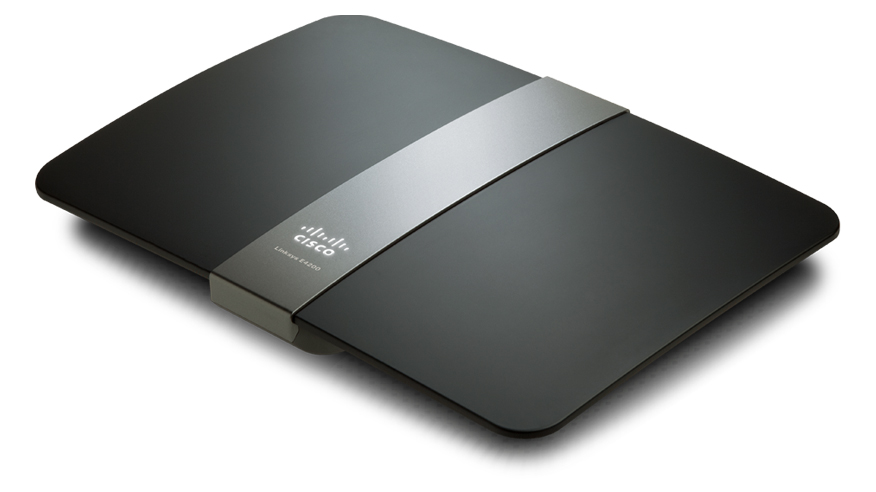
New Linksys E4200 Router

Just over 4 years ago I purchased a Linksys WRT54GS router from Best Buy.  The main reason was to use my work notebook PC because I was not able to go downstairs due to a foot injury. The Linksys WRT54GS worked great.  I never had a problem with firmware updates, the radio signal was strong, and everything I connected through Wi-Fi (including the Wii) worked.  But lately I’ve had a desire to replace the unit to take advantage of wireless N which is on my Sager notebook and my work notebook (Dell Latitude E6400).

I am happy with Linksys products, I’ve recommend them to family, friends, and clients.  So when I heard the Linksys E4200 was available, I had to get it.  But yikes, look at that price!!  Way too expensive, besides the WRT54GS is working fine, no need to upgrade.  However, almost every week, Best Buy or some other company would have ads in the Sunday paper showing me the router I wanted to get, but could not justify the price point.

Then this past Sunday, Best Buy had the router on sale, save $30.00.  Then I remembered I had a Reward Zone $5.00 coupon that was going to expire within 2 weeks, and a $10.00 Best Buy gift card that was waiting for me to use.  My inner voice now said, “How do you feel about saving $45.00 on the router you want?  It has wireless N with a max speed of 450Mbps, guest wireless access, USB drive hookup, and GB wired connections.”  Let’s go shopping!!

This slideshow requires JavaScript.

So on Tuesday I purchased the Linksys E4200 and installed it inplace of the WRT54GS.  The design looks business class.  The Cisco logo lights up.  When the light it solid, everything is good, it blinks during power on or if something is wrong.  The port lights on the back light up, but you can turn them off via the internal web page for whatever reason.  The power supply looks like something  your would expect to see in a notebook.  I like this design over the large block which seems to always take 1.5 – 2 spaces on most power strips and surge protectors.  However, the cord from the AC outlet to the transformer could be a little longer.

You can setup the router with the Cisco software or via your Internet browser at address http://192.168.1.1.  The default password is admin.  I prefer to use the web browser because I have better control of the features I want to enable.  Plus I’ve installed the Linksys software once before on my old Dell PC.  the software brought the PC to an unbearable performance level.

Fist thing, CHANGE THE ROUTER PASSWORD.  Everyone who has a Linksys router has the same password.  If you want to help keep people out of your network, pick a nice complex password, or better a pass-phrase.  Now that’s done, time to setup the wireless.  In my opinion, setting your router not to broadcast your SSID is false security.  Anyone can use Wireshark or other applications to scan the wireless spectrum and will see your SSID anyways.  I like themes, and the last 10 years has been a Star Trek theme for just about everything.  So with my new router, I am going with a new theme.  Now the SSID has a name which reflects the theme I am going with on my PCs.

I left both 5.0 and 2.4GHz on the same SSID with the default channel settings and signal strengths.  Time to start the Sager notebook and experience all the goodness of wireless N… and nothing.  What??  I know the Intel 5300 AGN is a wireless N card like the name states.  Checking Ubuntu Forums, I found an answer from user scarey9.  After modifying the config file, I rebooted the notebook and was ready to experience wireless N… and now what??  Why is my speed fluctuating from 420 Mbps to 1Mbps?

Accessing my e-mail, Internet, playing videos from Youtube was painful.  So let me try booting into Windows 7 x64.  I made the connection to my new router, and I was having the same speed issues.  Playing Battlefied Heroes was terrible.  Something is not right because my old router at a solid 54Mbps can play my on-line games just fine.  Time to do some research again.  Everything I could fine regarding this router stated how great and fantastic it was.  Even after installing the first firmware from Linksys did nothing for me.

I ended up going to Linksys and using WebEx on-line chat.  The technician started helping me by supplying directions on how to configure the router.  After about 45 minutes and looking at the clock (yikes, it is 1:00AM) he said I should take it back to Best Buy an get another one.  Something was wrong with the Wi-Fi.  So I printed the chat history and took it with me when I wen back to Best Buy.

The second router works much better.  The best consistent speed I received is 270 Mbps.  I did see it jump to 450 Mbps, but it does not stay there.  Now I kept some of the suggestions the Linksys tech gave me such as:

  • Setting both 5 and 2.4GHz Network Mode to Mixed.
  • Setting the Channel Width to 40MHz on the 5GHz and moving to Channel 48 – 5.240GHz.
  • Setting the Channel Width to Auto on the 2.4GHz and moving to Channel 9 – 2.452GHz.
  • Enabling SSID Brodcast on both radio frequencies.

What I don’t like about the E4200

Two things that I am very disappointed with this router: USB interface and lack of Parent Controls as in the Linksys Valet.

First, the USB port is 1.1 and 2.0 compliant.  Why not USB 3.0?  It’s been out for a little while, and from what i gathered, the pin connection has not changed for at least 6 months, if not longer.  Plus the performance of the USB port is terrible.  All of my FTP clients and smb connections (Windows shares) timed out.

The Parental Controls via the web interface and the Cisco software are terrible.  With the Valet router I saw, you can select one of the radio buttons for Parent, Teen, Child.  Why would they not include this in the E series?  To my knowledge this is not a business class router.  I can only block a total of 8 URLs on the router.  This is a poor design and should be addressed for the next firmware update.

On last thing which I am confused about is the guest access.  Basically you grant someone access to your wireless connection, they get a 192.168.133.x address and open their web browser.  they enter the password and off they go.  But from what I gathered is they will always have access to you guest network as long as you don’t change the SSID or the password.  This would be OK if the lease expired in a week.  But you can only have a maximum of 10 devices connected.  So if grandma visits for the week with her notebook and does not come back for three months, does that mean I am down to 9 available device connections?  This should be addressed too.  Let me kick off the guest device without having to reset passwords.

I would still recommend this router to anyone who is looking for a high performance unit.  The design is pleasing, the speed is there, the guest access is cool, but I am not impressed with the USB port.


Categories
dell Firefox Geek Stuff Google Chrome Internet Browsers Linux Stuff Skype Software Ubuntu Virtual Machine VMware Player Windows 7 Windows XP Work

Ubuntu 10.10 on Work Notebook

Last year when a new IT Service company took over the contract from another IT Service company I was working for, they issued a new Dell Latitude E6400 notebook to each of us.  This PC is not the beefiest notebook from Dell, but this is not a review of the PC.   The notebook specs are:

  • Intel Core 2 Duo P8700 @ 2.53GHz
  • 2GB RAM (upgraded to 4GB by employer)
  • Intel Video
  • CDR / DVD ROM
  • 14″ Screen
  • SD Card Reader
  • Intel network

The PC came with Windows 7 x32, Symantec EndPoint 11, MS Office 2007, and a few other applications.  Being a good IT technician, I used Symantec Ghost to create a backup image the day it was delivered.  At first I left the PC as is and installed a bunch of software to support the client.  After a year of hard use, computer was having problems booting or just being stable.  In no way is this a bash of Windows 7.  I like Windows 7 but the system needed a rebuild and it was time to try something that’s been on my mind.

After sending an e-mail to my manager asking for access to the ftp server to download MS Office 2007 and Symantec EndPoint 11, I wiped out the HDD and installed Ubuntu 10.10 x64.  With a 64 bit OS, I can use the full 4GB of RAM.  Just like before, installation took about 20 minutes, and everything worked without having to install additional drivers.  Since the client I’m working for has started to roll out Windows 7 x64, I wanted the same for my VM.  Running Windows 7 x32 would be all that I need for the VM, but as I found out over the last 5 months, some applications that work in the 32bit environment will not work in a 64bit environment.  Sometimes you need the native 64bit software to install or work correctly.

So I chose VMware Player to run Windows 7 x64.  The VM is configured for 2.5 GB of RAM, 2 processors, with the NIC configured at bridged for DNS registration.  After activating Windows 7 x64, the system was ready for MS Office 2007 and Symantec EndPoint 11.  While waiting for may manager, I installed Banshee, Filezilla, Terminal Server Client, Google Chrome, Adobe Air, Tweetdeck, Adobe Acrobat Reader, Gimp, Skype, VLC, Ubuntu Tweak, Shutter, modified my Pictures Screensaver, plus a bunch of minor configurations I use for Ubuntu.  After several days of using Outlook Web Access (OWA), I finally received my email with the server information and software keys.

So now I am supporting my client with Ubuntu 10.10 x64 at work.  I can honestly say Ubuntu is ready for the IT professional in a real world environment.  I have three different Microsoft Windows vms for supporting two non-trusting domains, covering x32 and x64 operating systems.  Due to the limited resources on my notebook, I can only run one VM at a time, but that’s OK.  There is a second Linux computer constantly running a Windows XP x32 OS which I use to manage one of the domains.

The nice thing about my setup is the dual monitors.  The default screen is the notebook display, the second screen I use for my VMs or if I need to focus on a particular task.  I usually run Banshee and Empathy IM on the small LCD, Tweetdeck minimized, and Google Chrome for all my personal stuff.  Terminal Server Client is used to connect to the three Windows 2003 or 2008 severs I support orto VNC into a Windows XP workstation.  Plus the other techs at work were impressed with what I accomplished.

So give Ubuntu or any Linux distro a shot at work for a month.  If you plan it a little, you can have your system running Linux with a VM or two to meet your clients needs.

Categories
Geek Stuff Home PC Sager Software Ubuntu Virtual Machine VMware Player

Playing a Game from 1988 on VM in 2011

An Apple IIe with DuoDisk and Monitor //.
Image via Wikipedia

Tonight I read a post on Howtogeek.com about the Apple IIe.  The Apple IIe was our family’s second computer my dad purchased back in 1984 or 1985.  I remember the night my brothers and I drove out to the Apple dealer on the far side of Pittsburgh, PA.  If I remember correctly, it was past Green Tree Hill.  The post on Howtogeek.com started reminding me of all the great times I had with that Apple IIe.  Here are the specs:

  • CPU: 65C02 @ 1.02MHz
  • 128k RAM
  • Mouse single button
  • Duodisk 5 1/4″ floppy disk drive
  • Apple Color Dot Matrix printer (unknown model)
  • 1200 bps modem (unknown model purchased about 2 years later)
  • Green mono-color monitor with tilt action

So I went to Google and searched for Ultima V Warriors of Destiny, and found some pictures of the game.  And I thought to myself, “Oh, so that’s what it would have looked like in color.”  One of my children came over and saw the screen and asked what I was looking at.  So I explained to him about the game I used to play back in 1988 and I wished I could play it again.  We did find a video of Ultima III Exodus and while the video was playing he said it looked cool and he wanted to try it too.  So I sent him off to bed and I started reading on how I was going to play this game again.

I knew that VMware Player was going to be the tool of choice.  I just needed a few things like MSDOS 6.22 in a preferred ISO format, a way for VMware Player to see the files, oh and the game itself.  Well finding the game, manuals, maps, and scanned copies of the front and back of the box, and MSDOS 6.22 was easy.  So I created a VM with 1GB HDD, 16MB RAM and a single processor (all over kill but who cares, it is a VM.)  I set the MSDOS 6.22 ISO as the CD-ROM and booted from it.  I was able to fdisk and create a C: drive and rebooted.  I formatted the C: with the /s parameter copied over all the files from the CD-ROM, and rebooted into the VM BIOS.  I changed the boot order to so the HDD would boot first instead of the CD-ROM.  So now I have a VM of MSDOS 6.22.

But I could not figure out how to get the seperate files from the game into the VM.  Remember this is MSDOS6.22 without any network support, just a base OS.  A little more research brought me to a blog on WordPress which explained to me how to create a .IMG file. The part of that post which helped was was Creating the image:.  Now I have a .IMG file of Ultima V Warriors of Destiny.  That IMG file can be mounted as a floppy drive in VMware Player. From within the VM, just change to drive A: and run ultima.

Here are a few screen shots of the VM with the game when it first starts.

This slideshow requires JavaScript.

Categories
Droid Geek Stuff Motorola Droid

Bar Codes to Install Apps on Droid

Last week I created a new page called Apps on my Droid which contain most of the apps on my Droid.  Instead of using a link or entering a search in the Droid Market, I posted the 2D bar codes which links directly to the app.

Just install a bar code scanner on your Droid and you can install apps from any bar code.

Categories
Geek Stuff LinuxMint Windows Stuff Work

Used Linux Mint Bootable USB to Fix Windows Server 2003

Logo Linux Mint
Image via Wikipedia

Today I was asked by one of our server administrators who was off site, if I knew how to reset the local administrator account on a Windows 2003 Server that was not communicating with the domain.  I said yes, “let me get my Linux Mint USB stick and I can reset the password.”

The server was an old HP ML370 with a RAID configuration and 4GB of RAM.  Once I was in Linux Mint 9, I mounted the local hard drive and navigated to the %systemroot%\System32\config folder.  I right click that folder and selected Open Terminal here.  Here is the reference document I use:

  1. Open Nautilus and mount Windows HDD.
  2. Right click Windows folder and select Open in Terminal.
  3. Type cd System32/config and press Enter.
  4. If account is Administrator enter sudo chntpw SAM.
  5. If any other account enter sudo chntpw -u <account> SAM.
  6. From menu select function.
  7. Write hive files.

After rebooting the server I was able to log in as the local administrator and complete the repairs.  Another justification for every IT Technician (server administrator or on-site workstation support) should have multiple tools to repair any computer on-site.

Categories
Geek Stuff Sager Software Virtual Machine VirtualBox Windows Vista

Resize Virtual HDD in VirtualBox

Several weeks ago I created a VM of Windows Vista with SP2. It ran great on my Sager NP8690. Unfortunately when I created the virtual hard drive I made it a 20GB drive. After all the patches were installed, I was down to about 3GB free. So I read a few posts from VirtualBox Forums about how to resize the drive. Here are the steps I used from the post:

  • Close you virtual machine, leave VirtualBox running.
  • Create a new virtual hard drive with the new size (I went with a dynamic size with a maximum size of 80GB).
  • Download Gparted-Live CD ISO file.
  • Add the Gparted-Live CD ISO file as a new virtual CD in VirtualBox.
  • Adjust your virtual machine settings to add the second larger hard drive and the Gparted-Live CD.
  • Start the VM and boot from the Gparted-Live CD file.
  • Choose all the defaults and wait for Gparted to start.
  • Select the second hard drive and set the partition to msdos.
  • Select the first hard drive, right click on the graph and select Copy.
  • Select the second hard drive, right click on the graph and select Paste.
  • This will take some time.
  • Once completed, shutdown the VM.
  • Adjust the settings for the VM by removing the old hard drive and the Gparted-LiveCD.  Add your Vista CD or ISO file.
  • Boot the VM and press any key to start from the Vista CD.
  • Select the option to Repair the OS.
  • Once it repairs, reboot the VM and do not press any keys.  Vista should boot and run a check disk of the VM.

Now when I boot into Vista, I have a 80GB hard drive with plenty of free space.

Thanks to gushy and bwh1969 for the original posts.

Categories
FaceBook Geek Stuff Home PC LinuxMint Sager Thunderbird Ubuntu Windows 7 Windows Vista Windows XP Work

Busy IT Month

Well it’s been a busy month for me at home and work.  I migrated my Sager NP8690 to Ubuntu 10.04 and created three virtual machines; Windows XP, Windows Vista, and Windows 7.  To my surprise Windows Vista SP2 is extremely stable as a VM.  I disabled UAC because I don’t like being asked “are you sure you want to do this” from my PC.  Both Windows 7 and Windows XP SP3 ran well also.  Over all I was pleased with the performance from each VM.  Of course that changed when I tried to run two VMs at the same time,  I was running out of RAM.  I think if I had 8GB installed, running two VMs would have worked fine.

However, I was never able to get get Blu-Ray running in any VMs or in Ubuntu.  This bummed me out since I wanted I watch Star Trek.  Maybe I’ll ask Santa to bring a Blu-Ray player for Christmas.  Then I was informed by my wife that she needed Windows in order to work from home.  Plus she was not too thrilled that I didn’t create a account in Ubuntu for her.  Oops!

So I backed up everything (again) and reinstalled the image I took before wiping out my hard drive.  Since I am dual booting between Windows 7 and Ubuntu 10.04, I deiced to leave Windows with a larger partition and keep all my videos there.  I can access then easily enough from Ubuntu without much hassle.  I still need to install a few application in Ubuntu (Thunderbird, Filezilla) but for the most part I am finished.

Instead of trying to use Gwibber a buddy of mine said I should look into TweetDeck.  TweetDeck requires Adobe Air to install and run.  Being Adobe has issues with x64, there were no .deb files for my OS.  I downloaded the .bin file and from a Terminal window I typed ./AdobeAIRInstaller.bin.  Now I can install TweetDeck and have access to my LinkedIn, Twitter, Facebook, and Google Buzz accounts.

At work, I was asked to test a kickstart install script for RHEL 5.3 (Red Hat Enterprise Linux) client install on a test PC.  I used a Dell Precision 370 which has a Intel P4 3.4 GHz  single core, 2GB of RAM, 80GB Sata drive, Nvidia Quadro FX 1400 card, and a DVD drive.  Installation took about 30 minutes.  I test several applications, accessing network shares, and printing to several network printers.  I still prefer Ubuntu or Linux Mint over RHEL, but it was fun to be part of a Linux project.

I also help with installing a new Dell server this week.  The job required us to install a keyboard/mouse tray, move an existing server and tape library up, install a new IP console KVM, and install the new ESX server.  Due to space limitations, we placed a LCD monitor on the side of the rack.  Because I hurt my back several day earlier I was asked not to lift anything.  So for me it was more of a learning experience.  Hopefully I will be asked to assist with other data room projects.

Right now I’m downloading openSuse 11.3 x64 on DVD.  Maybe this weekend I’ll try it out on a VM to see some of the new improvements I’ve read about.

Kristen's Healthy Living Blog

Exploring ways to live a healthier life

Brave & Reckless

Reclaiming my inner badass at 50

Discover WordPress

A daily selection of the best content published on WordPress, collected for you by humans who love to read.

Drone Builders Blog

Informational Blog for Drone & Quadcopter Builders and Hobby enthusiast.